WPILIb and GitHub Desktop
Downloading WPILIB and GitHub Desktop
Installation guide and links for WPILIB can be found here and GitHub Desktop download links here.
Using GitHub Desktop with WPILIB
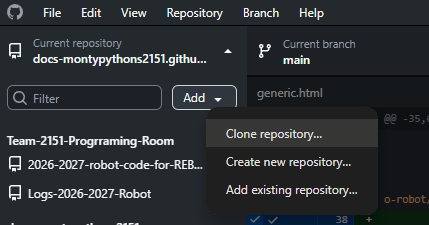
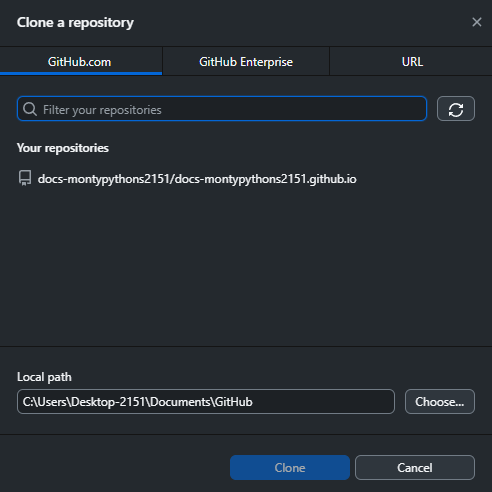
To start using GitHub Desktop log in to your Github account and then clone the repository you want to access / edit.
Opening the Repository in WPILIB
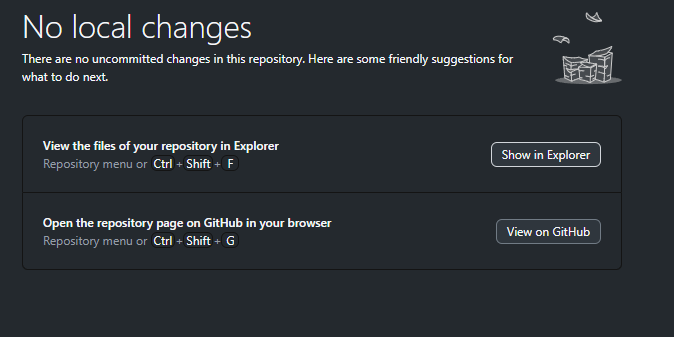
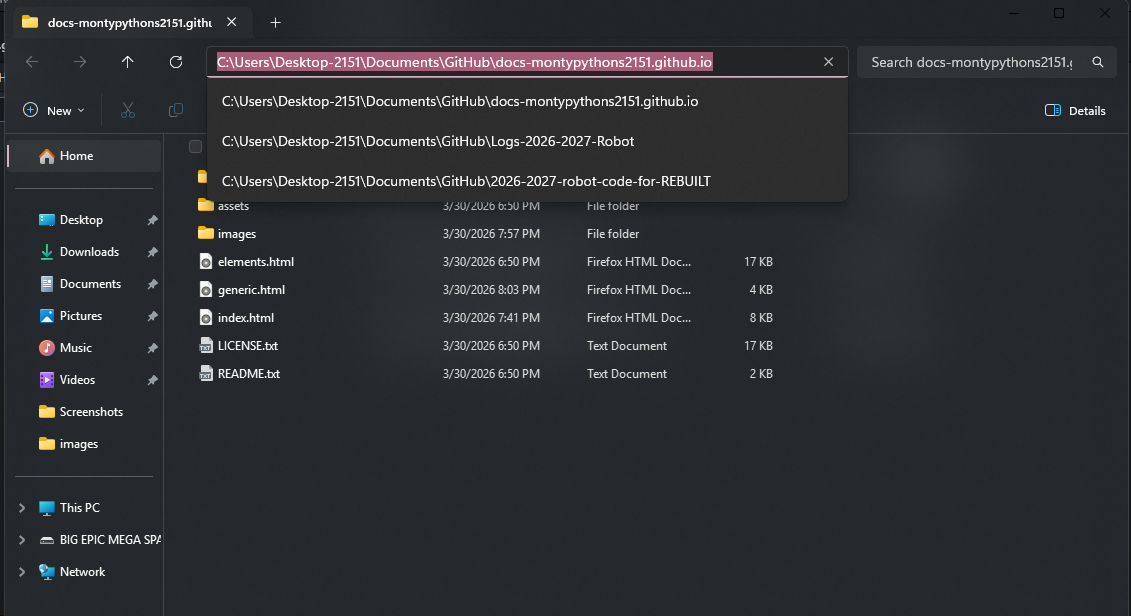
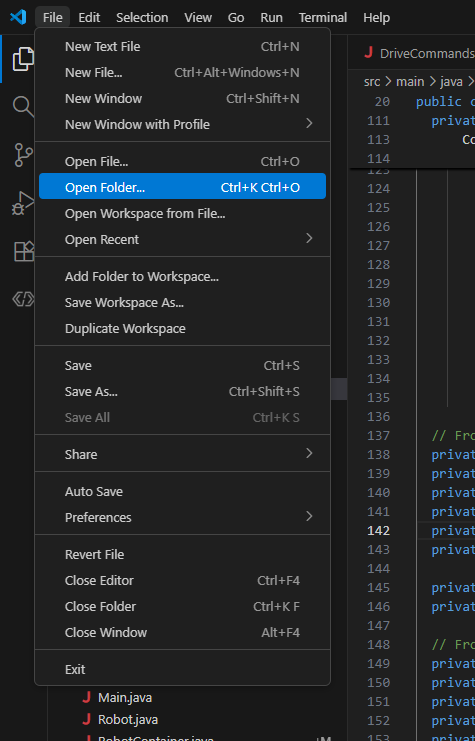
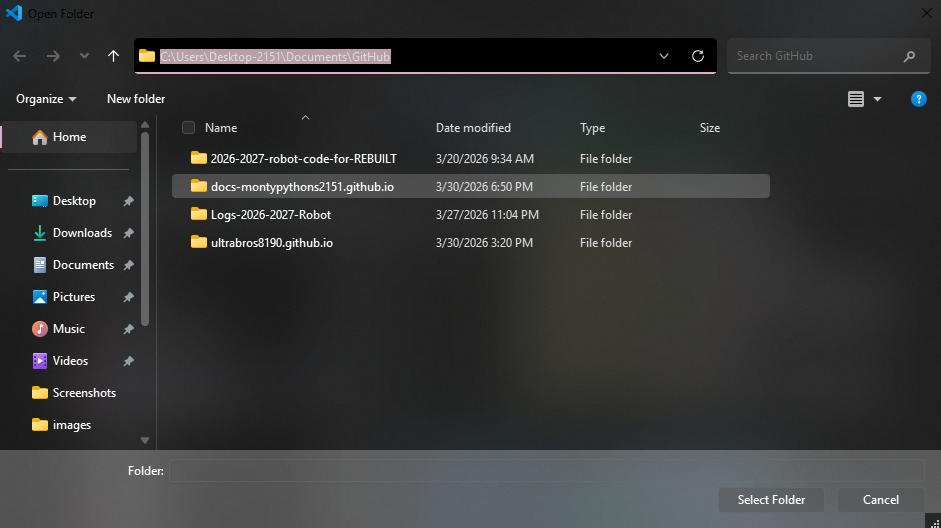
To open the repository in WPILIB all you have to do is press "Show in Explorer" in GitHub Desktop, copy the file path that opens, then open WPILIB, press "File", "Open Folder", then paste the path into File Explorer and press "Select Folder".
Building and Deploying Code
Once you have the project opened in WPILIB you can build and deploy the code onto the robot.
Make sure you're connected to the robot before you deploy!!!
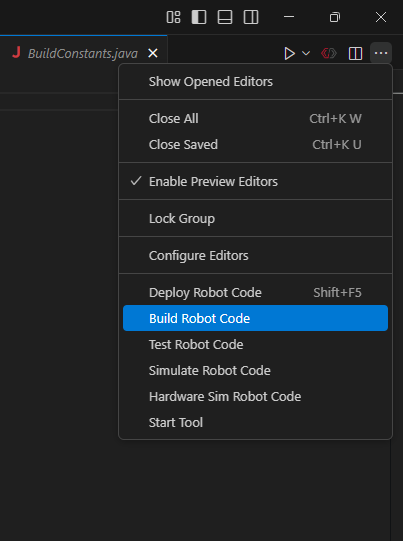
Press the three dots in the top right corner then press "Build Robot Code", wait for it to finish, and press "Deploy Robot Code".
Comitting Your Changes To The GitHub Repository
Once you change any code or files in WPILIB you can save the changes by pressing "File" then press "Save All". If you want to just save one file you can press Ctrl+S while having the file open in WPILIB.
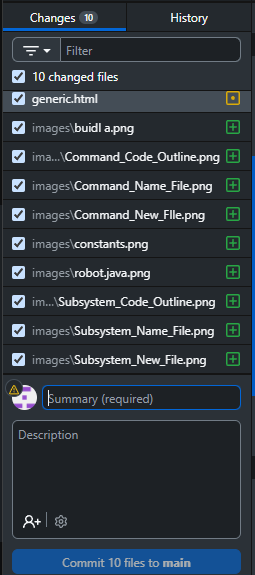
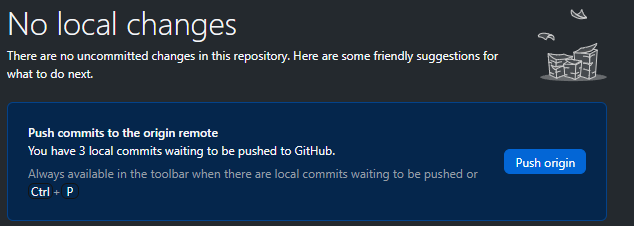
After you save, open GitHub Desktop and you should see the changes made. If you don't refer to previous steps for troubleshooting. Add a summary of what you changed then press commit and push to origin.
Creating and Managing Branches
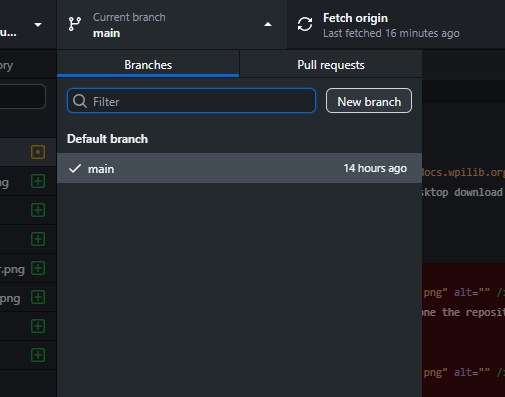
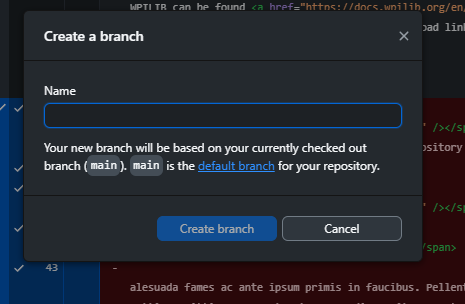
You can create branches within repositories by pressing "New branch" under "Current branch", choose a name based off what you need to create the branch for, and press "Create branch". If it says to "Preview Pull Request" press that button and follow the steps mentioned.
To commit your changes to a branch just follow the previous steps mentioned for commiting changes.
Basics of Coding in WPILIB
If you don't already know how to code in Java then I highly recommend using W3Schools for learning Java.
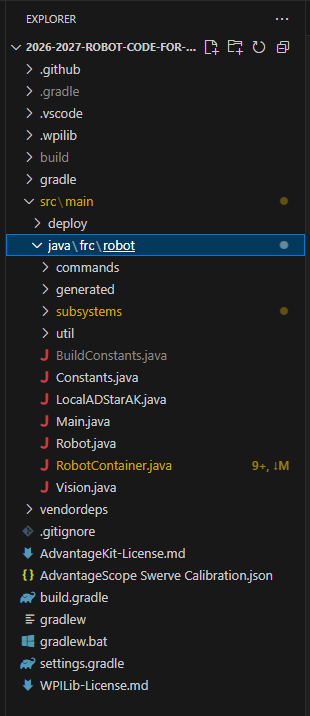
To access the main part of the folder that you'll be using press "src/main" then "java/frc/robot".
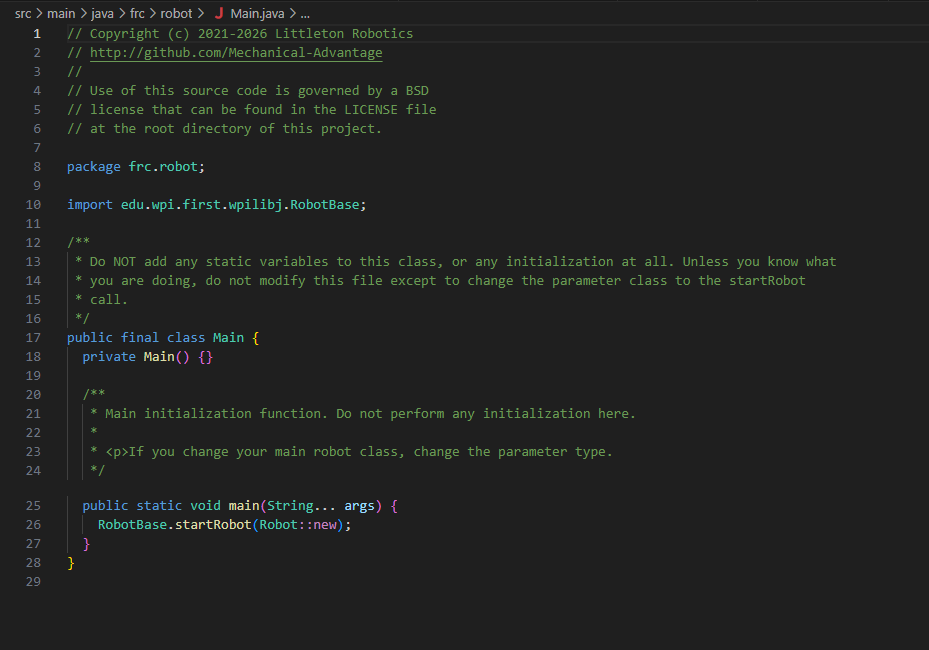
Main.java
This is where all code is initialized. You're most likely never going to edit anything in this file but it's a good start to see how everything works. Most questions should be answered by the comments in the code.
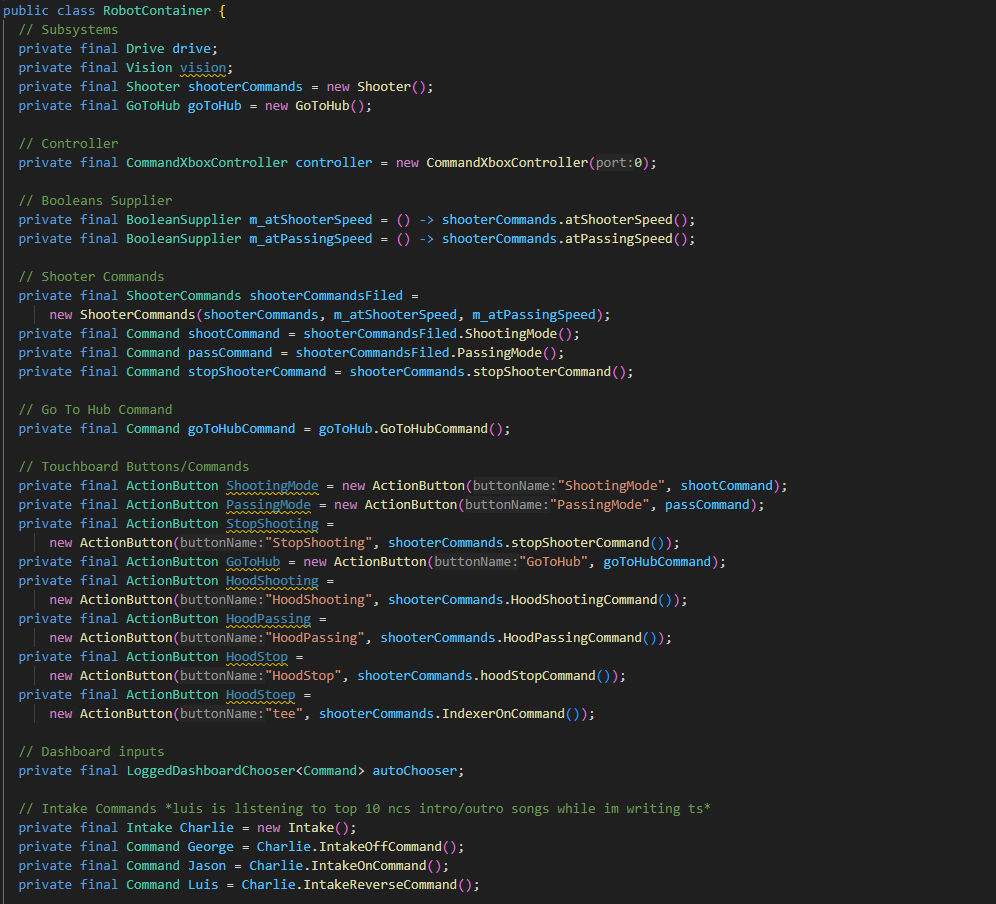
RobotContainer.java
One of the most important files here. This is where all subsystems, commands, and everything else in between is initialized and called. The controller is also added here.
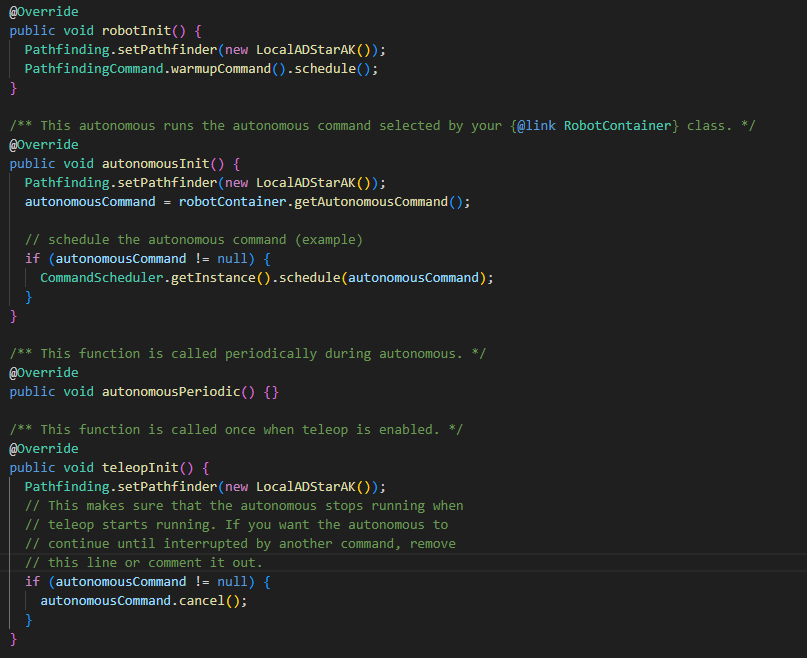
Robot.java
Just like Main.java you're most likely not gonna touch this file much but still very important to understand. In this file, "Init" will stand for initialize and "Periodic" means whatever is in the method is called every 1/100 of a second. The rest of it should be pretty self-explanatory. Comments will most likely answer most of your questions.
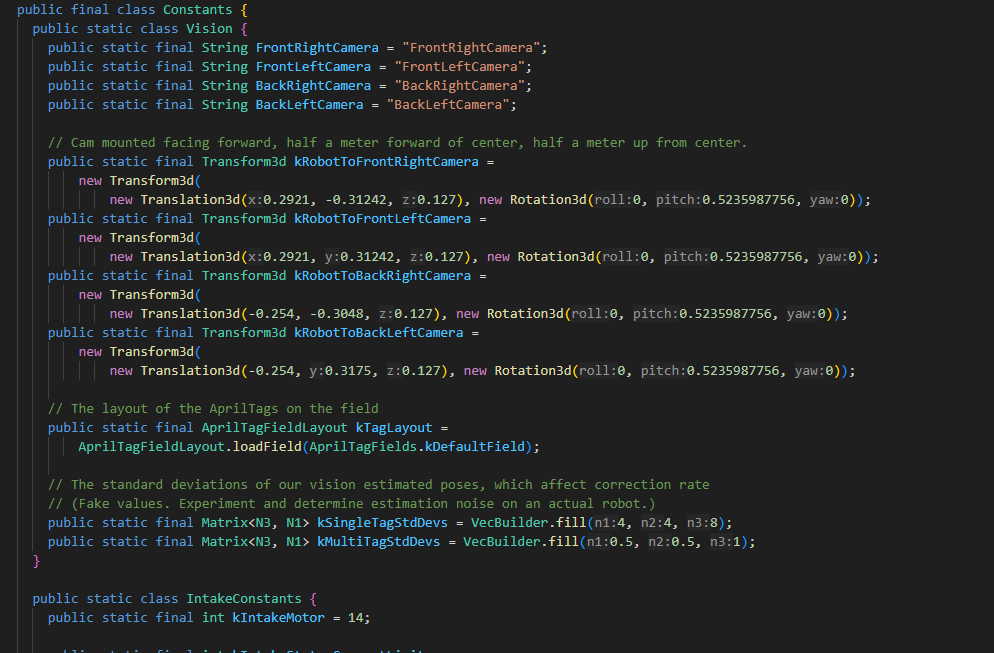
Constants.java
As the name implies, this file is for setting all of your constants for various systems that you'll be creating.